Integrating Rapidflare with your Slack workspace
This guide will help you learn how to integrate Rapidflare into your other Slack workspace. This is an admin flow.
Add to Slack
-
Go to your admin dashboard's agents landing page
-
In the left navigation bar, click on the
`Converse`link to bring up your active agent -
In the left navigation bar, click on the
`Deployments`link
-
In the table of options, click on
`Enable`on the row for the Slack option. -
This will open up a new browser window with information and confirmation screens from Slack.
-
Follow the prompts to authorize the Rapidflare Slack App to access your workspace.
-
Once authorized, you will be returned back to the Rapidflare dashboard, where you will see a confirmation message indicating that the agent has been successfully added to your Slack workspace.
Customize agent name
If you prefer, you can have Rapidflare available via a different user name within your Slack workspace.
-
`Cmd + T`or`Ctrl + T`in Slack and locate`@rapidflare` -
Click on
`About`>`Configuration` -
Scroll down to the
`Bot User`section. -
Click on
`Edit`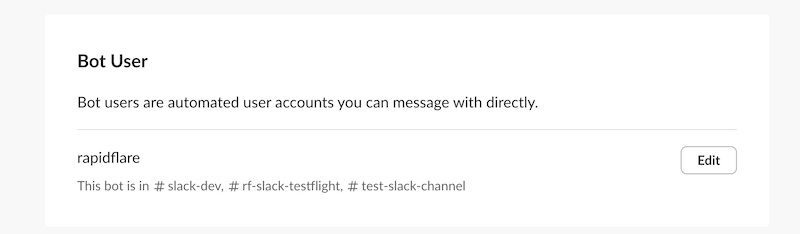
-
In the
`Edit bot name`window that appears, change the name of the agent as you prefer. Tip: We find most of our customers rename it to something in the format of`{Customer short name} Agent`or`{Customer short name} Genius`.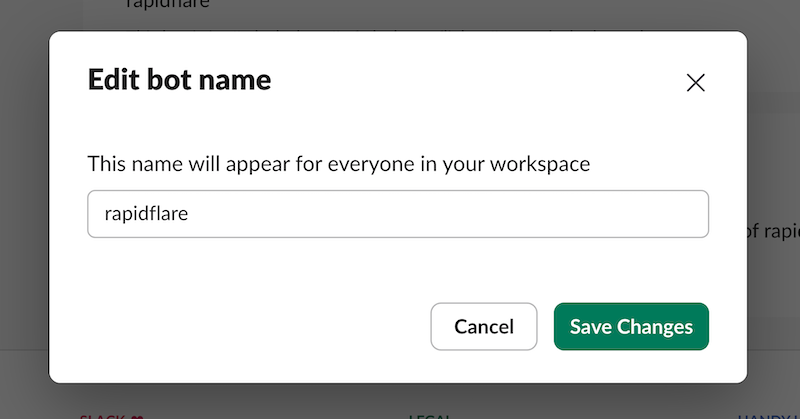
Your Slack users can now interact with Rapidflare, via the `@mention` name you've set.
Disabling / Deactivating Slack agent
You can deactivate Rapidflare's Slack with one of the following two methods:
Disable from within Rapidflare's admin dashboard
-
Go to your admin dashboard's agents landing page
-
In the left navigation bar, click on the
`Converse`link to bring up your active agent -
In the left navigation bar, click on the
`Deployments`link
-
In the table of options, click on
`Disable`on the row for the Slack option. -
This will disable Slack both in Rapidflare's deployments, as well as in your Slack workspace.
Disable directly within Slack
-
You can deactivate the Slack app from within Slack, though this method doesn't provide a way for Rapidflare to track that the agent has been deactivated. So we recommend the first method.
-
Find your app in the left navigation bar in Slack, click on it. This brings up the app's home page. Click on
`Configuration`in the`About`tab.
-
Scroll to the bottom of the page that opens, and click on
`Remove App`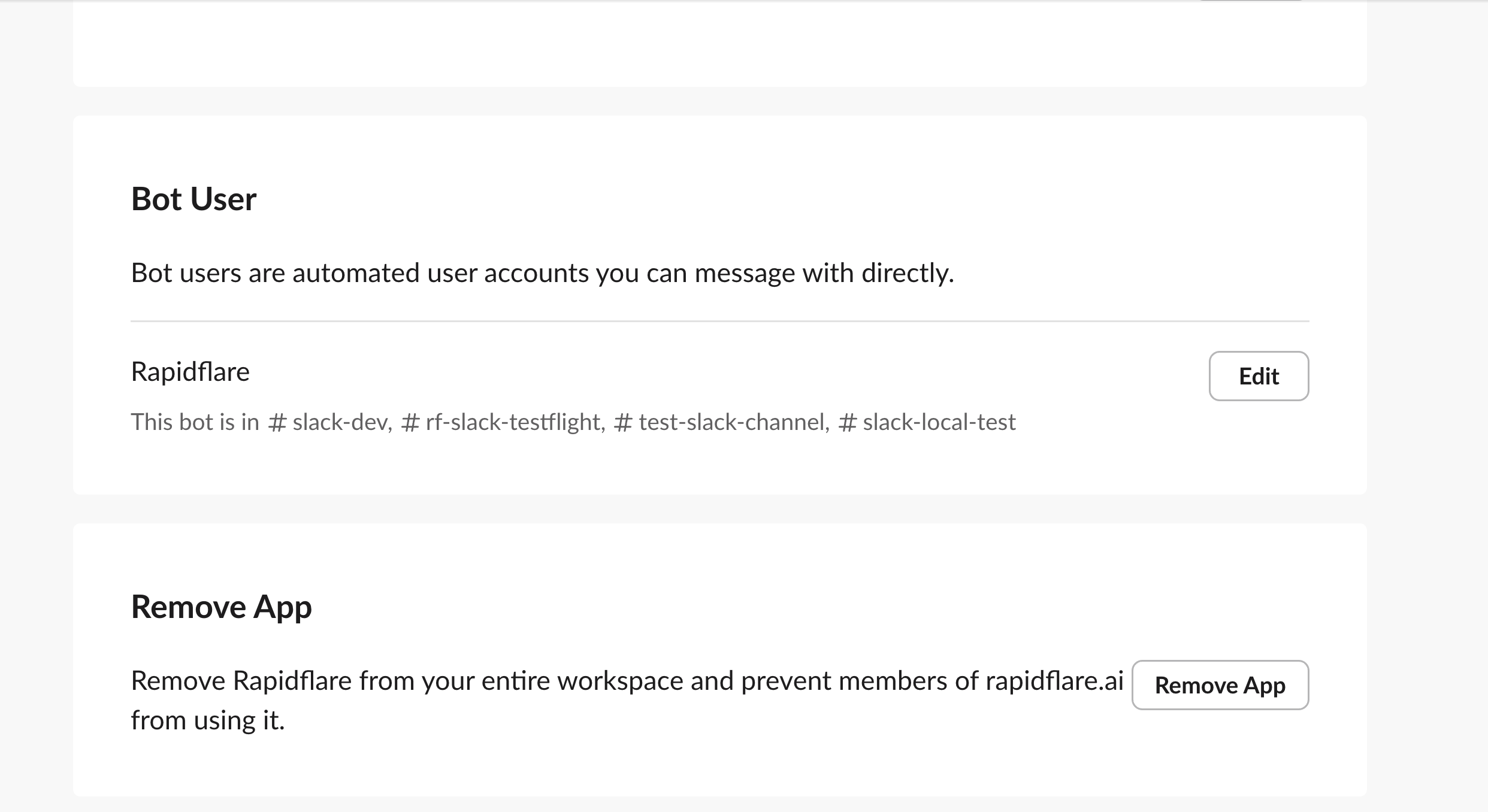
Coming soon
- AI Assistant mode support (enables chatting with a split pane, and handy access at the top right corner of your workspace)
- Support for artifacts, content tiles, explainability events and more.